Understanding curriculr
Turning a spreadsheet into a typeset CV

curriculr is an R package for producing data-driven curricula vitae from a structured Excel workbook rather than hand-edited markup. I walk through the core workflow – reading CV content from the workbook, converting it into Typst layout blocks, and rendering the result as a PDF via Quarto – and explain the design choice behind it: content lives in the spreadsheet, rendering configuration lives in Quarto, and transformation logic lives in small, reusable R functions. I also cover the resume/CV variant switch, which lets you toggle a shorter version of the same document without touching any R code, and situate curriculr within the broader reproducible-research ecosystem it shares conventions with (toolero, containr, and submitr).
curriculr is an R package for building academic CVs and résumés from an Excel workbook, rendered to PDF via Quarto’s Typst engine. The core idea is simple: you maintain your CV data in a structured .xlsx file, call create_cv(), and get a typeset PDF back. The package handles all the intermediate steps — reading and validating the workbook, resolving a visual theme, injecting values into a Quarto template, and iterating over your data rows to emit raw Typst markup.
1 Package architecture
The pipeline has two distinct phases. The first phase runs in your R session: it reads and validates data, resolves theme values, and writes a filled-in CV.qmd file by substituting sentinels in the package template. The second phase runs in a Quarto subprocess: the rendered document calls back into curriculr’s exported rendering functions to emit raw Typst blocks row by row.

The dashed arrow from quarto_render() into the inner box is doing conceptual work: those functions are not called directly from create_cv(). They run inside the Quarto subprocess when CV.qmd executes its R chunks. The connection is through the sentinel-substituted template, not a direct R call chain.
2 The two modes of create_cv()
2.1 Scaffold mode
Scaffold mode is triggered by calling create_cv() with no arguments — that is, when data = NULL. It is designed for first-time setup. No rendering takes place.
What it does, step by step:
- Resolves
getwd()to an absolute path viafs::path_abs(). - Copies
inst/extdata/cv-data-template.xlsxto the current working directory. If the file already exists andoverwrite = FALSE(the default), it prints an informational message and skips the copy. - Copies
inst/extdata/placeholder.pngunder the same logic. - Prints a three-step instruction list telling the user to fill in the workbook, replace the placeholder photo, and call
create_cv()withdataandphotoarguments. - Returns the destination directory invisibly.
# Scaffold mode — run from your project directory
create_cv()
#> ✔ Created /your/project/cv-data-template.xlsx
#> ✔ Created /your/project/placeholder.png
#> ℹ Next steps:
#>   1. Open cv-data-template.xlsx and fill in the profile sheet.
#>   2. Replace placeholder.png with your own profile photo.
#>   3. Call create_cv(data = 'cv-data-template.xlsx', photo = 'your-photo.png').
2.2 Render mode
Render mode is triggered when a path is supplied to data. It runs the full pipeline: read, resolve, write, render.
Step 1 — Validate scalar arguments. variant and use_icons are both validated with match.arg() before anything else. Invalid values abort with a clear error.
Step 2 — Resolve and validate paths. Both data and photo (if supplied) are converted to absolute paths via fs::path_abs(). The photo’s path relative to the output directory is computed with fs::path_rel() — this is what gets injected into the template, since the Quarto subprocess needs a relative path to the image from the .qmd file’s location. If photo = NULL, photo_rel is set to an empty string and the template renders a single-column header.
Step 3 — Read the workbook. read_cv_data() loads the workbook with openxlsx2, applies per-sheet logic, filters section rows when variant = "resume", sorts dated sheets in reverse chronological order, and returns a named list. See the workbook schema section below for what each sheet must contain.
Step 4 — Resolve the theme. .resolve_theme() merges cv$theme (which is NULL if the workbook has no theme sheet) with the twelve built-in defaults from .cv_theme_defaults(). Any key present in the workbook overrides the default; missing keys fall back silently.
Step 5 — Write CV.qmd. The package template at inst/templates/CV.qmd is read into a string, then a series of gsub() calls replace five sentinels:
| Sentinel | Replaced with |
|---|---|
__CURRICULR_DATA_PATH__ |
Absolute path to the workbook |
__CURRICULR_PHOTO_PATH__ |
Relative path to the photo, or "" |
__CURRICULR_VARIANT__ |
"cv" or "resume" |
%%CURRICULR_FORMAT%% |
YAML format: typst: block from .build_format_block() |
%%CURRICULR_THEME%% |
Raw {=typst} style block from .build_typst_theme_block() |
The filled-in CV.qmd is written to the same directory as the workbook.
Step 6 — Render to PDF. quarto::quarto_render() is called with output_format = "typst". The Quarto subprocess re-reads the workbook, calls the rendering functions described below, and produces the final PDF.
# Render mode — full CV with photo
create_cv(
  data  = "~/my_cv/cv-data.xlsx",
  photo = "~/my_cv/headshot.jpg"
)

# Résumé variant — only rows with include_in_resume checked
create_cv(
  data        = "~/my_cv/cv-data.xlsx",
  photo       = "~/my_cv/headshot.jpg",
  variant     = "resume",
  output_file = "resume.pdf"
)

# Plain-text contact line, no icons
create_cv(
  data      = "~/my_cv/cv-data.xlsx",
  use_icons = "none"
)
3 The workbook schema
The workbook is the single source of truth for all CV content. It is an .xlsx file with a fixed set of control sheets and any number of user-defined section sheets.
Control sheets (reserved names, handled with special logic in read_cv_data()):
profile— two columns:fieldandvalue. Each row is one scalar:first_name,last_name,email,website,github,linkedin,phone,address,profile_statement. Returned as a named character vector.sections— the render-order manifest. Columns includesection(matches the sheet name exactly),label(display heading),title_col,org_col,detail_col,date_fun, andwhere_col. Row order controls the order sections appear in the rendered CV.theme— two columns:keyandvalue. Twelve recognized keys covering fonts, colors, page size, and margins. Optional — absent sheet triggers built-in defaults.readme— documentation sheet, skipped entirely byread_cv_data().
Section sheets — one sheet per CV section (e.g. education, experience, publications). Standard column spine:
| Column | Purpose |
|---|---|
title |
Main entry label |
unit |
Organization or venue |
startMonth |
Start month |
startYear |
Start year (used for reverse-chronological sort) |
endMonth |
End month ("present" supported) |
endYear |
End year |
where |
Location |
detail |
Additional context line |
include_in_resume |
Boolean — controls résumé filtering |
The include_in_resume column is consumed by read_cv_data() and dropped before data reaches the rendering pipeline. New sections can be added programmatically with add_section().
4 Inside CV.qmd: the rendering pipeline
Once Quarto launches the subprocess, the .qmd file runs four R chunks that call back into curriculr’s exported functions.
The setup chunk calls read_cv_data() again with the injected path and variant, reconstituting the cv list inside the subprocess.
The header chunk calls cv_contact_line() to build the Typst-formatted contact line, then emits a two-column photo/name/contact grid (when photo is non-empty) or a single-column header (when it is). All profile strings are passed through typst_escape() before being spliced into Typst.
The sections chunk iterates over the rows of cv$sections in order. For each section it calls cv_section() to emit the heading, then cv_render_section() to emit the entries. The column names and date_fun token are read directly from cv$sections, so section-level formatting is controlled entirely from the workbook.
4.1 The builder/printer split
cv_render_section() is the printer: it calls cat() and returns invisible(NULL). It is not directly testable because its output goes to stdout.
.build_section_blocks() is the builder: it does the real work — iterating over rows, calling .cv_entry() for each one, returning a character vector of Typst blocks. Because it returns a value rather than printing, it can be tested directly with testthat without capturing stdout.
This pattern — builder builds, printer prints — is used consistently across curriculr and arborize.
5 Function reference
5.1 Exported functions
create_cv(data, photo, output_file, overwrite, variant, use_icons) The main entry point. Dispatches to scaffold mode when data = NULL, render mode otherwise. In render mode it orchestrates the full pipeline: validate, read, resolve theme, write template, render. Returns the destination directory (scaffold) or PDF path (render) invisibly.
read_cv_data(path, variant) Reads all sheets from a curriculr-formatted .xlsx workbook and returns a named list. The profile and theme elements are named character vectors; all section elements are data frames sorted in reverse chronological order by startYear. The include_in_resume column is used for filtering when variant = "resume" and is then dropped. The readme sheet is skipped entirely.
add_section(workbook, section, label, date_fun, title_col, org_col, detail_col, where_col, overwrite) Adds a new sheet to an existing workbook and registers it in the sections control sheet. Writes the standard nine-column spine (title, unit, startMonth, startYear, endMonth, endYear, where, detail, include_in_resume) and adds a TRUE/FALSE dropdown validation on the include_in_resume column. Modifies the workbook in place.
cv_contact_line(profile, use_icons) Assembles the Typst-formatted contact line for the CV header. When use_icons = "fontawesome", known fields (email, website, github, linkedin, phone) are rendered as #fa-icon("...") calls with their display text. Unknown fields fall back to plain text with a warning. When use_icons = "none", all fields render as plain text separated by a middle dot. github and linkedin values are expanded to full URLs regardless of whether the workbook stores bare usernames or full URLs.
cv_section(title) Emits a raw {=typst} code block for a section heading. The first letter is rendered in the accent color; the remainder in the dark color. A horizontal rule in a light gray fills the rest of the line, implemented as a two-column #grid in Typst.
cv_render_section(data, title_col, org_col, detail_col, date_fun, where_col) The printer half of the builder/printer split. Calls .build_section_blocks() and passes the result to cat(). Intended to be called inside a Quarto chunk with results = "asis". Returns invisible(NULL).
resolve_date_fun(token) Maps a string token to a date-formatting function. Supported tokens: "date" (full month+year range via .cv_date_range()), "year" (year range via .cv_year_range()), "month_year" (start month and year only), "year_only" (start year only), "none" (returns NULL, date omitted). Unknown tokens emit a cli_warn() and return NULL.
typst_escape(x) Escapes a character value for safe use in Typst markup. Strips HTML <br> tags, collapses repeated whitespace, escapes the characters Typst treats as markup (#, $, %, &, ~, _, ^, {, }, [, ], @), and trims leading/trailing whitespace. The @ is included because Typst interprets bare email addresses as label references.
5.2 Internal helpers
.resolve_theme(theme) Merges a user-supplied theme vector (or NULL) with the twelve built-in defaults from .cv_theme_defaults(). Any key present in the workbook theme overrides the default; absent or empty keys are filled from defaults silently. Returns a fully-populated named character vector with all twelve keys present.
.cv_theme_defaults() Returns the twelve built-in theme defaults as a named character vector: font_family ("Lato"), font_size ("8.8pt"), body_color, line_leading, accent_color ("#c5050c" — Badger Red), dark_color, bodygray_color, lightgray_color, rulegray_color, papersize ("us-letter"), margin_x, margin_y.
.build_format_block(theme) Constructs the format: typst: YAML block injected at the %%CURRICULR_FORMAT%% sentinel. Pulls papersize, margin_x, and margin_y from the resolved theme.
.build_typst_theme_block(theme, use_icons) Constructs the raw {=typst} code block injected at the %%CURRICULR_THEME%% sentinel. Sets #set text() and #set par() and defines five Typst color variables (accent, dark, bodygray, lightgray, rulegray). When use_icons = "fontawesome", prepends the #import "@preview/fontawesome:0.5.0": * line.
.build_section_blocks(data, title_col, org_col, detail_col, date_fun, where_col) The builder half of the builder/printer split. Iterates over each row of data, calling .cv_entry() for each one, and returns a character vector of Typst grid blocks — one element per row. Testable without stdout capture.
.cv_entry(title, organization, detail, when, where) Produces a single raw {=typst} block for one CV entry. Runs all five arguments through typst_escape(), then emits a two-column #grid: left column holds title (semibold, dark) and organization+detail (smaller, gray, joined by an em dash); right column holds when and where (right-aligned, accent color, stacked with a hard line break). Empty fields are dropped via nzchar() so no blank lines or dangling em dashes appear.
.cv_date_range(row) Formats a full date range from a one-row data frame using startMonth, startYear, endMonth, and endYear. Handles the "present" sentinel (case-insensitive) in endMonth. Called by resolve_date_fun() when token is "date".
.cv_year_range(row) Formats a year-only range from startYear and endYear. Returns just the start year when endYear is absent. Called by resolve_date_fun() when token is "year".
.cv_value(row, name, default) Safely extracts a named value from a one-row data frame. Returns default (empty string by default) when the column does not exist or the value is NA. Used throughout .cv_entry() and the date helpers.
.fa_icon_map() Returns a named character vector mapping profile field names to their Font Awesome icon identifiers as used by the Typst @preview/fontawesome package. Currently maps email → "envelope", website → "globe", github → "github", linkedin → "linkedin", phone → "phone".
.coerce_col(col) Converts a column to character and normalizes the string "NA" (produced by as.character(NA)) back to NA_character_. Applied to every column of every sheet read by read_cv_data().
%||%(x, y) Null-coalescing operator. Returns y when x is NULL, zero-length, or all-NA. Used throughout the rendering helpers to provide safe fallbacks.
6 Sentinels and the null-coalescing operator
6.1 Sentinels
In curriculr, a sentinel is a placeholder string embedded in the CV.qmd template that create_cv() replaces at runtime with a real value using gsub(). They’re essentially markup that the template itself can’t know ahead of time — things that only become available when the user actually calls create_cv() with their specific paths, variant, and theme choices.
There are five of them:
__CURRICULR_DATA_PATH__— replaced with the absolute path to the user’s workbook__CURRICULR_PHOTO_PATH__— replaced with the relative path to the photo, or an empty string__CURRICULR_VARIANT__— replaced with"cv"or"resume"%%CURRICULR_FORMAT%%— replaced with the fullformat: typst:YAML block built from the resolved theme%%CURRICULR_THEME%%— replaced with the raw{=typst}style block that sets fonts, colors, and optionally imports the Font Awesome package
The two naming conventions (__DOUBLE_UNDERSCORE__ vs %%PERCENT_PERCENT%%) are just a visual distinction between the two kinds of substitution: the underscore sentinels are scalar string values, while the percent sentinels are entire multi-line code blocks. It’s not enforced anywhere — just a readability convention.
6.2 The %||% null-coalescing operator
That’s %||%, the null-coalescing operator defined in typst-helpers.R. It’s a pretty common R idiom — you’ll find versions of it in rlang and several other packages — but curriculr defines its own rather than taking a dependency just for this.
The logic is:
`%||%` <- function(x, y) {
    if (is.null(x) || length(x) == 0 || all(is.na(x))) y else x
}
So it returns y when x is NULL, zero-length, or entirely NA — and returns x otherwise. It’s slightly more defensive than the rlang version, which only checks for NULL. The all(is.na(x)) arm means it also catches columns that came back from Excel as a vector of NAs, which is a realistic edge case when a user leaves a field blank in the workbook.
In practice it shows up in typst_escape() and the date/value helpers as a safe fallback to an empty string, so that a missing profile field or an empty cell never causes a downstream error — it just silently becomes "" and gets dropped by the nzchar() checks later in .cv_entry().
7 On passing raw output
Here’s an example of what the raw output passed on can look like.
```{=typst}
#grid(
  columns: (1fr, 1.68in),
  gutter: 0.65em,
  [
    #text(size: 9.15pt, weight: "semibold", fill: dark)[PhD in Linguistics]
    #text(size: 8.25pt, fill: bodygray)[University of Wisconsin--Madison — Spanish Phonetics and Phonology]
  ],
  [#align(right)[#text(size: 8.1pt, fill: accent)[2018 - 2024\nMadison, WI]]]
)
#v(0.36em)
```
And a section heading looks like:
```{=typst}
#v(0.58em)
#grid(
  columns: (auto, 1fr),
  gutter: 0.65em,
  align: horizon,
  [#text(size: 13.8pt, weight: "regular", fill: dark)[#text(fill: accent)[E]ducation]],
  [#line(length: 100%, stroke: 0.55pt + rulegray)]
)
#v(0.20em)
```
As for the two design choices — they’re actually solving the same underlying problem from different angles.
{=typst} blocks are Quarto’s “raw passthrough” syntax. Wrapping content in ```{=typst} tells Quarto: don’t touch this, don’t interpret it as Markdown, just hand it directly to the Typst compiler as-is. Without that wrapper, Quarto would try to process the #grid(...) calls as Markdown and mangle them. It’s the same idea as {=html} or {=latex} raw blocks — you’re stepping outside Quarto’s rendering layer entirely and speaking directly to the target format.
results = "asis" solves the R side of the same problem. Normally when an R chunk calls cat(), knitr wraps the output in a code block before passing it to Quarto. results = "asis" tells knitr to pass the output through verbatim, with no wrapping. So the chain is: .cv_entry() builds the string → cat() writes it → knitr passes it through raw → Quarto sees a {=typst} block → Typst compiles it. Remove either piece and the chain breaks — without {=typst} Quarto garbles the markup, without results = "asis" knitr wraps it in a fence and Quarto never sees raw Typst at all.
It’s a clean stack once you see it, but it does require knowing which layer each piece belongs to.
8 Using curriculr
Given how much machinery sits under the hood, it’s worth stepping back and describing what actually happens when you use curriculr, day to day. The internals covered above are there to explain why the package behaves the way it does; using it, mercifully, requires knowing very little of that.
8.1 The first time
The first time you touch curriculr, you’re in scaffold mode, whether you realize it or not. You call create_cv() with no arguments, curriculr copies two files into the working directory, a template workbook and a placeholder image, and prints a short list of next steps. Nothing renders yet.
library(curriculr)
create_cv()
Those two artifacts are the whole of curriculr’s “installation” step, in a sense: an .xlsx workbook that will hold your CV content, and a stand-in photo you’re meant to replace with your own. Open the workbook, fill in the profile sheet (name, email, a line about yourself), then work through the section sheets. It may not be unreasonable to think of this as the only time you’ll look at R code before you have a working CV — the render itself needs just one more call:
create_cv(
  data  = "cv-data-template.xlsx",
  photo = "your-photo.png"
)
That’s render mode — the same read, resolve, write, render pipeline covered earlier — and it’s the last time you need to think about R at all.
8.2 Keeping it current
Recall that curriculr treats the workbook, not the R session, as the single source of truth. In other words: once the CV exists, “updating your CV” and “editing the spreadsheet” are the same action. There’s no step where you write R code to add a job or a publication.
Say a new conference talk needs to go on the CV. You’d open the presentations sheet, add one row — title, venue, dates, and whatever include_in_resume value you want — and save the file:
| title | unit | startMonth | startYear | endMonth | endYear | where | detail | include_in_resume |
|---|---|---|---|---|---|---|---|---|
| Reproducible CVs with curriculr | BRUG Meetup | July | 2026 | July | 2026 | Madison, WI | Lightning talk on the package’s design | TRUE |
Then you rerun the same create_cv() call you used the first time, pointed at the same workbook:
create_cv(
  data  = "cv-data-template.xlsx",
  photo = "your-photo.png"
)
curriculr rereads the whole workbook, resolves the theme, rewrites CV.qmd, and rerenders — the new entry lands wherever startYear places it, since sections sort in reverse-chronological order automatically. You don’t reorder anything by hand, and you don’t touch CV.qmd directly (it’s regenerated fresh from the template every time, sentinels and all, so any manual edits to it wouldn’t survive the next render anyway).
8.3 The shape of it
Put the two paths together and the whole lifecycle looks like this:
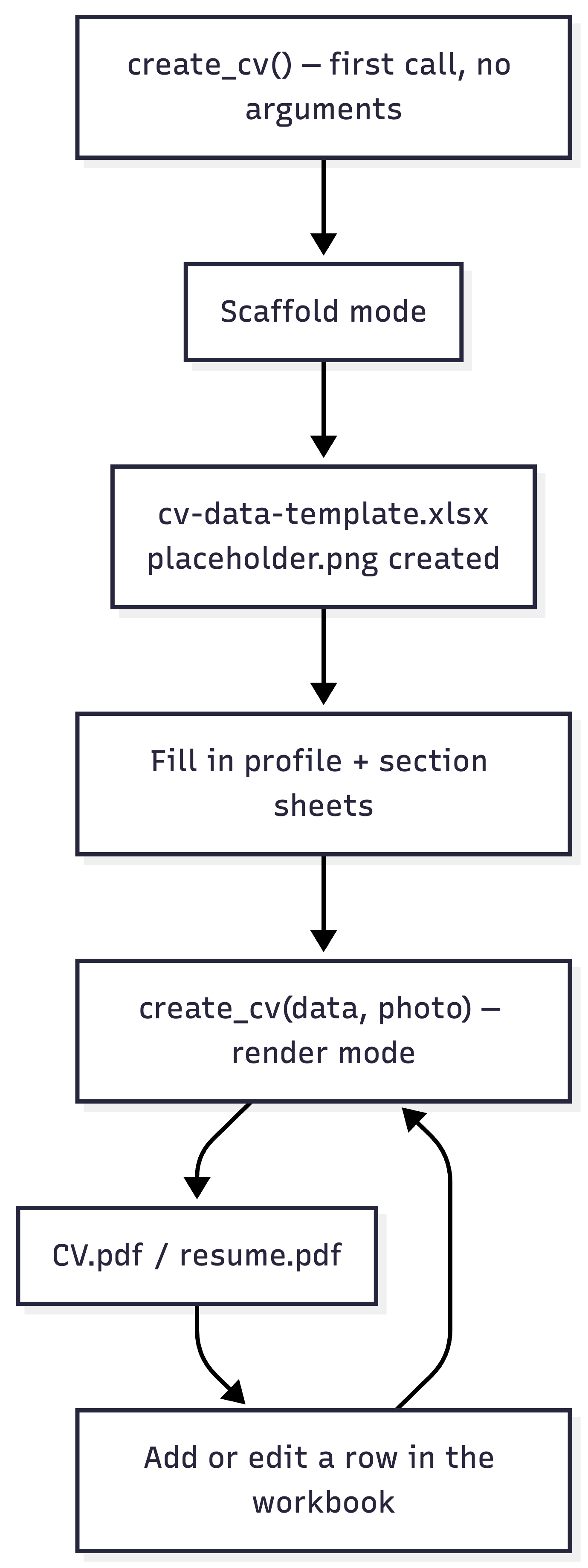
curriculrEverything below “render mode” is the loop you’ll actually live in: edit a row, rerun the same call, get a new PDF. The scaffolding step happens exactly once per CV.